Role assignment script
Requirements
- The user running the script must have either the Owner or User Access Administrator role on the Azure subscription.
- A valid SoftwareOne ID provided by SoftwareOne.
Microsoft support request handling and PEC-eligible roles
Customers may assign Owner, Contributor, or Support Request Contributor roles at the subscription level.
For effective operational support and security incident response, we recommend assigning the Contributor role, as it provides the access required to investigate issues, apply remediation, and work efficiently with Microsoft Support.
The Support Request Contributor role allows only the creation and management of Microsoft support requests and does not grant access to Azure resources or security alert data in the Azure portal.
Instructions
- Go to https://portal.azure.com and sign in.
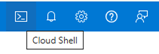
- In the top-right corner, click the Cloud Shell icon (next to your username).
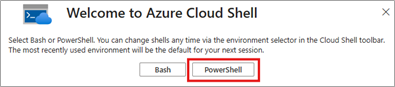
- When prompted, choose PowerShell as the shell environment.
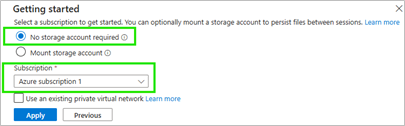
- Leave the default setting "No storage account required" selected and choose any subscription — it doesn't matter at this point.
Click Apply to launch Cloud Shell.
- Copy and paste the script (from below) into the Cloud Shell. ⚠️ Note: Keyboard shortcuts (Ctrl+c / Ctrl+v) do not work in Cloud Shell. Use the right mouse button to paste.
- When prompted, enter the SoftwareOne ID provided to you.
- Confirm the action when prompted by typing: y
- If successful, a message will confirm that the role has been assigned.
- You may now close the Cloud Shell.
The script
One-liner code snippet
Use this when you want to assign the role to subscriptions individually.
New-AzRoleAssignment -ObjectID insert-here-provided-swo-id -RoleDefinitionName "Contributor" -Scope /subscriptions/insert-here-subscritpion-id
Full script
Use this when you want to iterate quickly through all subscriptions.
# Cloud Shell PowerShell SoftwareOne role assignment script
# Define the foreign principal object ID (provided SoftwareOneID)
Clear-Host
$foreignPrincipalId = Read-Host "Provide SoftwareOneID: "

$roleDefinitionName = Read-Host "Provide Role: [type Owner or Contributor or Support Request Contributor] "
$displayName = "SoftwareOne"

# Prompt user for confirmation
$confirmation = Read-Host "$displayName will be assigned the $roleDefinitionName role for all subscriptions? (y/n)"

if ($confirmation -eq 'y') {
    # Get all subscriptions
    $subscriptions = Get-AzSubscription

    foreach ($subscription in $subscriptions) {
        Write-Host "➡️  Processing subscription: $($subscription.Name) ($($subscription.Id))"

        # Set current context to the subscription
        Set-AzContext -SubscriptionId $subscription.Id | Out-Null

        try {
            # Assign picked role at the subscription scope
            New-AzRoleAssignment -ObjectId $foreignPrincipalId -RoleDefinitionName $roleDefinitionName -Scope "/subscriptions/$($subscription.Id)" -ErrorAction Stop
            Write-Host "✅ Successfully assigned $roleDefinitionName role in: $($subscription.Name)"
        }
        catch {
            $errorMessage = $_.Exception.Message
            if($errorMessage -notlike "*Operation returned an invalid status code 'Conflict'*") {
                Write-Warning "⚠️  Failed to assign role in $($subscription.Name): $_"
            }
        }
    }
} else {
    Write-Host "❌ Operation cancelled by user."
}
Where can I verify the role assignment after running the script?
Navigate to the subscription where the role was assigned, then go to IAM > Role assignments. The assignment will appear as a foreign principal with a generated name.
Troubleshooting
- Check that you are the Owner of the subscription.
- Verify correctness, spelling and spacing in any manually entered values.
- Authentication issues are often resolved by logging out of the Azure portal, logging back in, and restarting the Cloud Shell session.
- If the issue persists, authenticate manually using
Connect-AzAccount -UseDeviceAuthentication(example below).