AWS BT: Migrate to Fine-Grained IAM Actions
Use this procedure when Billing Transfer is blocked by the fine-grained IAM migration warning and the console Bulk Policy Migrator fails on an inaccessible member account. You can also use it instead of the Bulk Policy Migrator, as it tends to be faster.
What this changes: This procedure uses AWS Samples migration scripts that were reviewed and stored in a Crayon private location. The script adds fine-grained AWS actions that correspond to the old permissions already present in each policy. Review the policy list before applying the update.
0. Disable AWS console multi-session
Disable multi-session in the AWS console before you start.
1. Verify the account
Open AWS CloudShell in the relevant management account:
aws sts get-caller-identity
Confirm the correct account ID before continuing.
2. Upload the reviewed migration scripts
Download bulk-policy-migrator-scripts-for-account-cost-billing-consoles.zip to your laptop.
Upload the zip file (do not extract it first) to CloudShell using Actions → Upload file.
Note: Mind the CloudShell region. CloudShell data is stored per region.
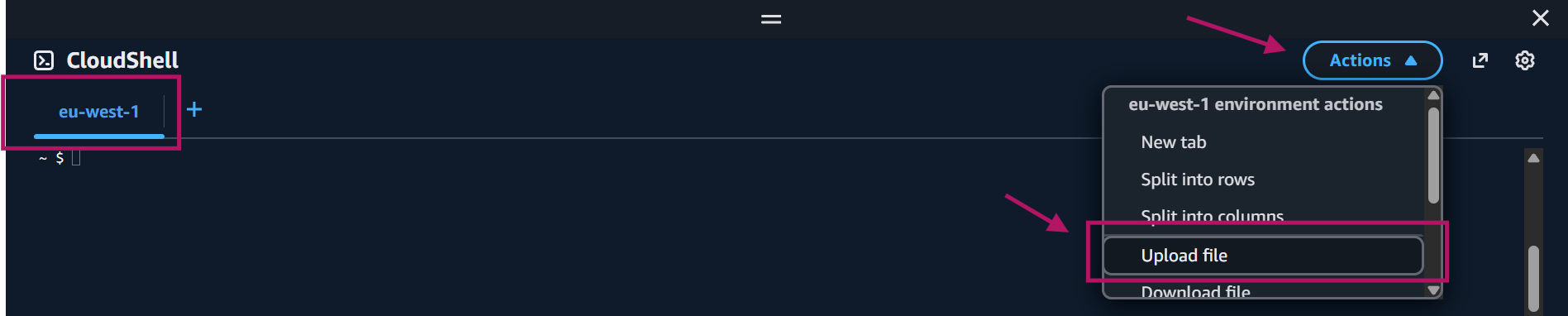
Extract the files and check that the required boto3 library is installed. You can paste all lines together or run them one by one:
unzip bulk-policy-migrator-scripts-for-account-cost-billing-consoles.zip
cd bulk-policy-migrator-scripts-for-account-cost-billing-consoles
python3 -c "import boto3, botocore; print(boto3.__version__, botocore.__version__)"
Only if the boto3 check fails, install boto3 and run the check again:
python3 -m pip install --user boto3==1.43.83
python3 -c "import boto3, botocore; print(boto3.__version__, botocore.__version__)"
If the second check still fails, stop and do not continue.
3. Identify affected policies
python3 policy_migration_scripts/scripts/identify_affected_policies.py
Save the newest results folder:
FOLDER=$(ls -dt Affected_Policies_* | head -1)
echo "$FOLDER"
Review the identified policies:
jq -r '
  .. | objects
  | select(has("PolicyName") and has("PolicyType"))
  | [.Account, .PolicyName, .PolicyIdentifier, .PolicyType]
  | @tsv
' "$FOLDER/affected_policies_and_suggestions.json"
4. Update affected policies
python3 policy_migration_scripts/scripts/update_affected_policies.py \
  --affected-policies-directory "$FOLDER"
Confirm the output shows:
Successfully updated all policies
If the output does not show this message, review any UpdateAffectedPolicies-ErrorReport-*.json file before retrying or continuing.
5. Enable the new action set
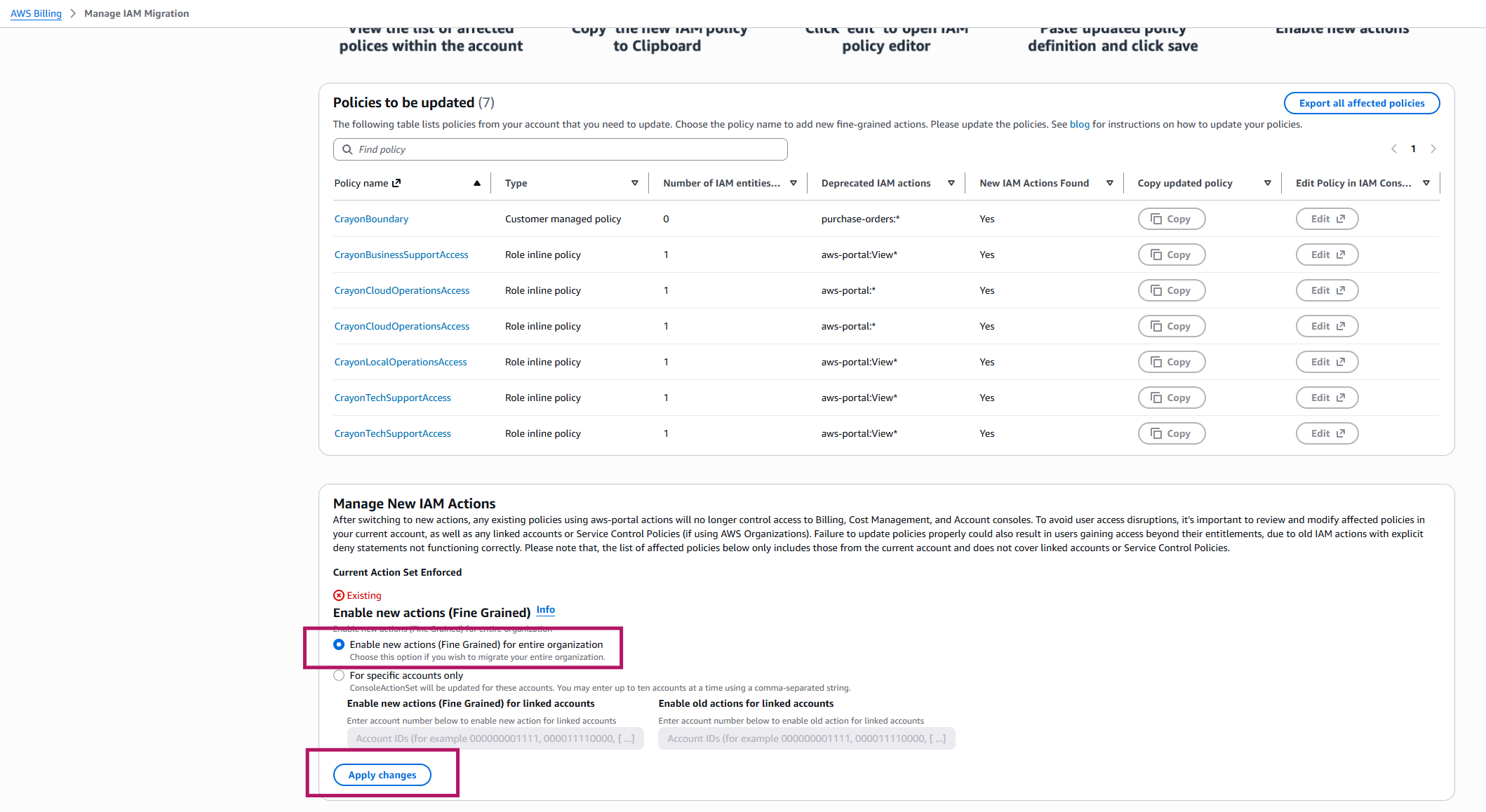
- Open https://console.aws.amazon.com/poliden/home?region=us-east-1#/.
- Select Enable New actions (Fine Grained).
- Select Apply changes.
- Confirm Yes.
- Verify the status is Fine Grained.
6. Verify Billing Transfer
- Return to Billing and Cost Management → Billing Transfer and refresh the invitation.
- Try accepting the Billing Transfer invitation. Click View details → Accept
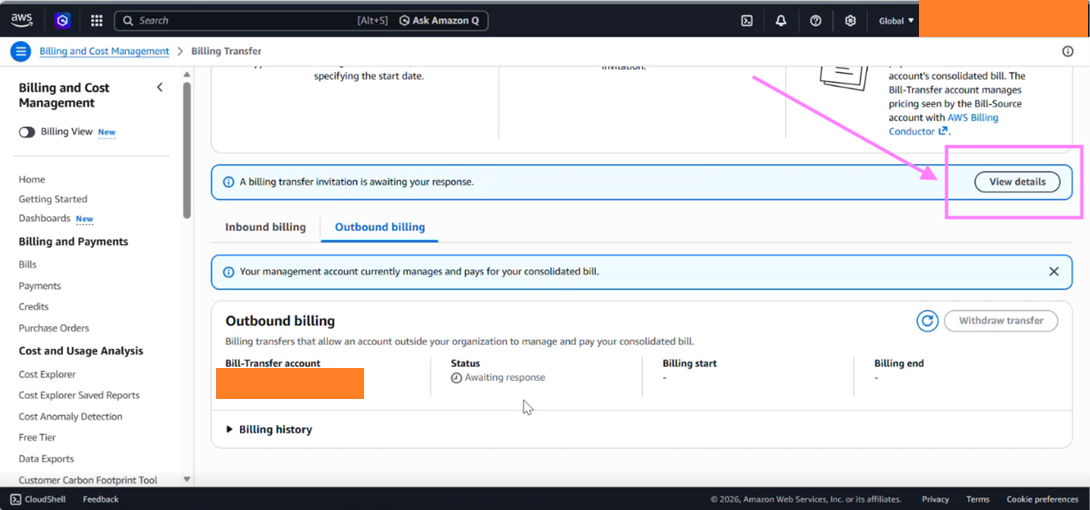
Verify with SoftwareOne if the "Billing transfer invitation from" AWS Account ID matches SoftwareOne Payer Account.
If it works, continue with the cleanup after confirming the migration is complete.
7. Cleanup
The generated files contain IAM policy information. After confirming that the migration is complete, delete the repository through the CloudShell file interface.
Alternatively, use the confirmation-based commands below:
cd ~
rm -rI bulk-policy-migrator-scripts-for-account-cost-billing-consoles
rm -i bulk-policy-migrator-scripts-for-account-cost-billing-consoles.zip
Check the displayed directory name and confirm (type y) only if it is correct.